
"No products" or an empty table
The panel says it is waiting for the products to appear and looks again after about 1.5, 3 and 5 seconds. If the table stays empty, scroll the page once and press Read again.
Most problems have one of a handful of causes: the page had not finished loading, the shop lays its pages out unusually, a setting was left at its default, or the shop started refusing visits. Find the symptom below; each comes with what is happening and what to change.
Add to Chrome, it's free No account · private by default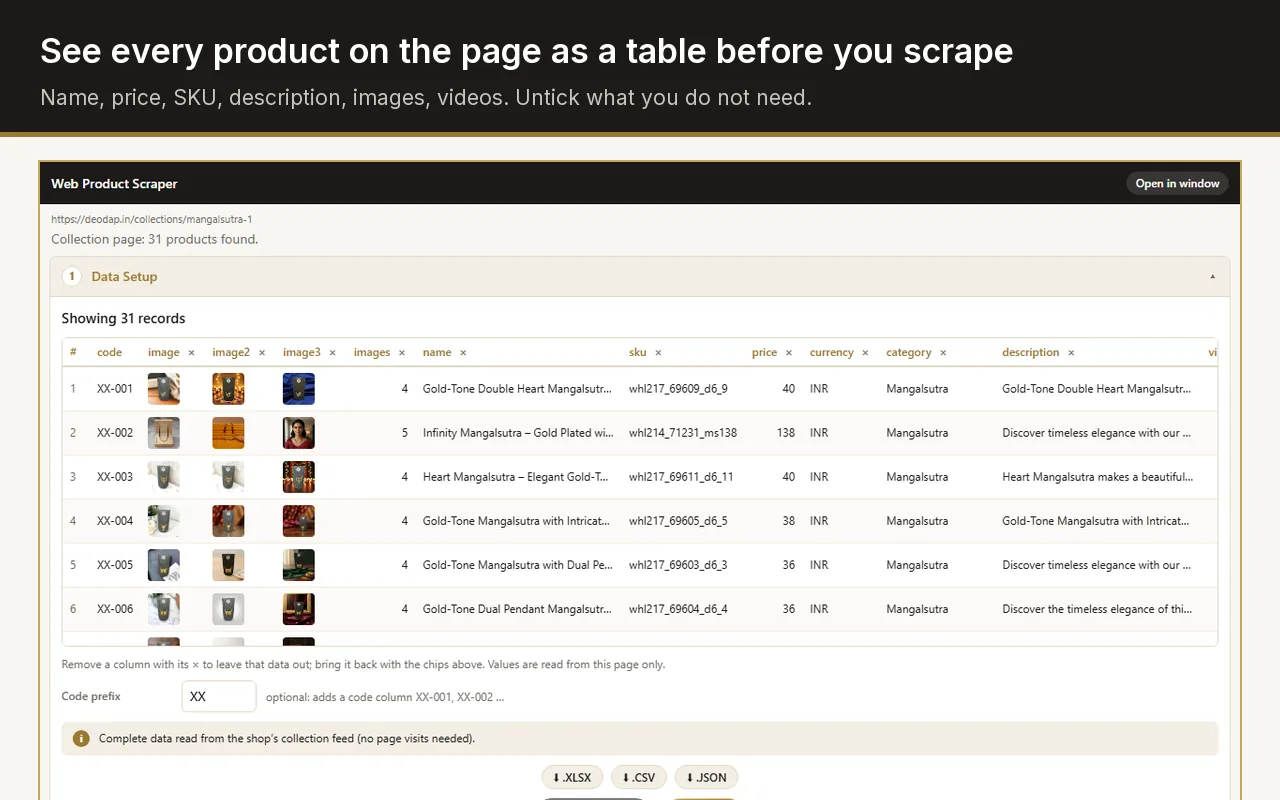
Usually because the shop builds its product list with scripts after the page opens. The panel re-reads such a page by itself a few seconds later; if it still finds nothing, press Read again, and if the shop is simply unusual, use Teach this site to point at one product card once.
The panel says it is waiting for the products to appear and looks again after about 1.5, 3 and 5 seconds. If the table stays empty, scroll the page once and press Read again.
Open Teach this site, press Pick next to the wrong field and click the right value on the page. The rule is saved for that shop.
In Teach this site, press Pick next to Product card and click any product: every product on the page then appears.
You are on a product page, which is read as that one product. Open the category or search page to get the whole list.
Each product is one row unless you tick Variants: then every size or colour the shop publishes gets its own row with its own price and stock.
On purpose: "you may also like" blocks on a product page are never collected.
Set the page range in step 2. For listings that load more as you scroll or behind a button, set the scroll rounds and "Load more" presses under Scrolling, Load more and speed.
It stops after three failed pages in a row, which usually means the shop is refusing visits. Auto speed already slows down when a shop pushes back; if a run still stops, untick Auto speed under Scrolling, Load more and speed, set "At a time" lower and "Pause" longer, or try again later.
The run ends at "stop after", 100 by default. Raise it, or press Continue when the panel offers the next products.
When you scrape again, choose Add to the list to keep what you have; products already in it are skipped. To read them again and see which prices moved, untick "Skip products already in your list" in step 2, or choose Clear and scrape again for a fresh copy.
When you start a run on a new site, the panel asks: Clear and start keeps each shop's data apart, Keep and add combines them.
The listing shows thumbnails. Choose Full: open each product page in step 2 so the full galleries are collected; Shopify stores give full-size photos even without it.
The ZIP holds a _failed.txt naming every photo the shop would not hand over. Download those few by hand.
The CSV is saved as UTF-8 with the marker Excel needs. If another program shows ₹ or € wrongly, import the file there as UTF-8.
Save the catalogue with Chrome's Save as PDF; other PDF printers can drop the links.
Under the status line in the panel there is a "Site read wrong? Report it" link. It opens an email with the page address, the extension version and what the panel said, ready to send to the developer, so the reader can be fixed for that shop and every shop like it.
Each shop needs permission once. Press "Allow this site" and accept Chrome's prompt for that website.
Those products show no price the reader could trust, often "price on request" or a price that appears only after choosing an option. The needs_review column lists such rows.
Auto speed already starts at 5 product pages at a time with a 1-second pause, slows down if the shop refuses, and remembers the pace that worked for each website. To set your own, untick Auto speed: "At a time" goes up to 10. A pace you set yourself does not slow down by itself, so a shop that refuses fast visits ends the run after three failed pages in a row.
Rarely, and it empties your scraped list. Most problems are fixed by Read again, a setting, or Teach this site.