
Right-click, Save image as
Right-click the picture and choose Save image as. Copy image puts it on the clipboard instead, to paste into a document or a chat.
Which way works best depends on the page. Chrome can save every image a page has loaded, an image downloader extension lets you pick and filter the pictures on the page in front of you, and on an online shop a product scraper saves each product's photos at full size, sorted into folders, across all the pages of a category. Here is how each one works and where it stops.
Add to Chrome, it's free No account · private by default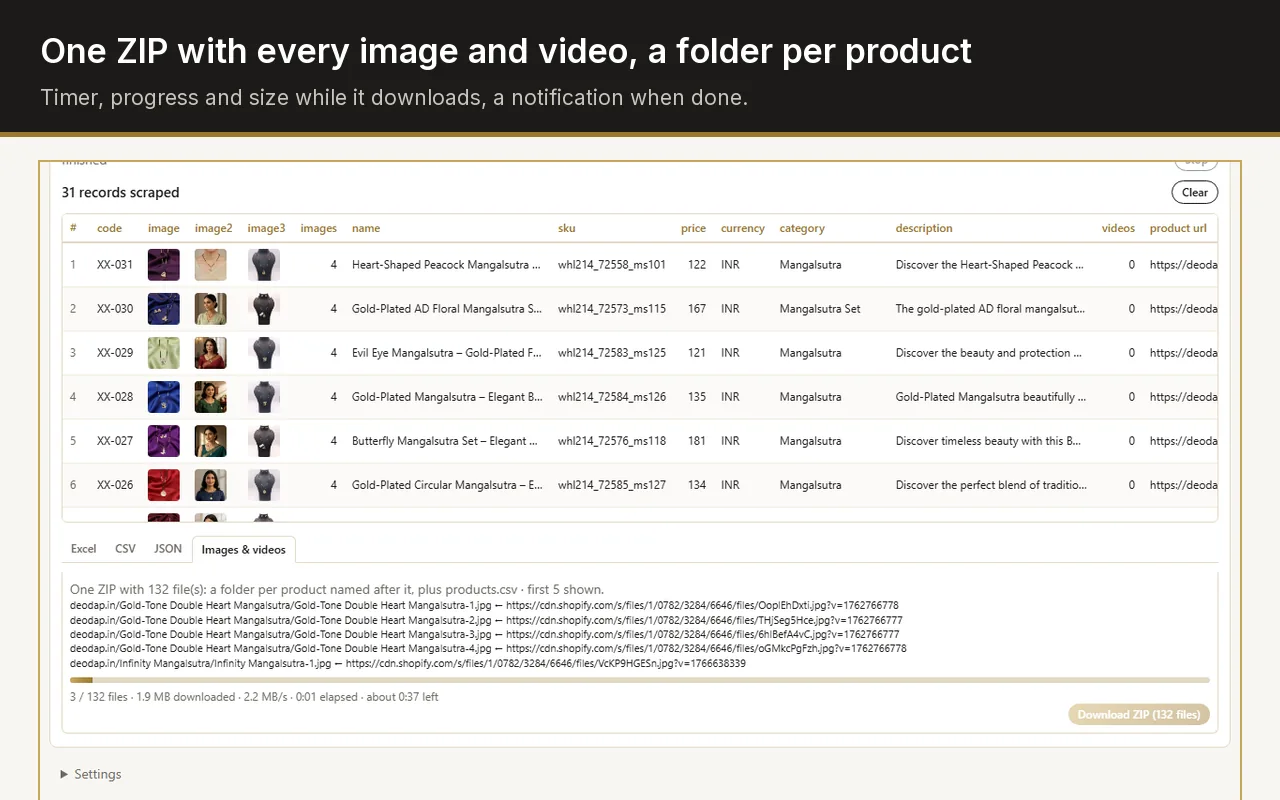
For one page, press Ctrl+S in Chrome (Cmd+S on a Mac) and save it as "Webpage, Complete": every image, photo and JPG the page loaded lands in a folder beside the saved page. To pick which pictures to keep, filter them by size or type and download them in bulk, use an image downloader extension. For the product photos of a whole shop, use a product scraper such as Web Product Scraper, which follows the shop's pages and saves the full-size photos sorted by product.
| Chrome "Save as" | Image downloader extension | Web Product Scraper | |
|---|---|---|---|
| Works on | Any page | Any page | Shop category, search and product pages |
| Pages per go | The one you have open | The one you have open; some read every open tab or follow links a few levels | Up to 500 listing pages a run, plus the product pages |
| Image size | Whatever the page loaded, often a resized copy | What the page shows; some can follow links to larger files | The full-size photo from each product page or the shop's feed |
| How files are organised | One folder, named by the site | One download or ZIP, named by the site | A folder per product, inside a folder named after the shop |
| Images that load as you scroll | Only those already loaded | Those loaded once you have scrolled | Set it to scroll or press Load more (up to 10 times a page), or open the product pages with Full |
| What else you get | The page's HTML, styles and scripts | Filters by size, type or address | A spreadsheet of names, prices and SKUs in the same ZIP |
Open the page, scroll to the bottom so that every image has loaded, then press Ctrl+S (Cmd+S on a Mac). Choose "Webpage, Complete" as the format and save. Chrome writes the page as an .html file and puts everything it loaded, images included, into a folder with the same name ending in _files.
It costs nothing and needs no install, but the folder mixes photos with icons, logos, style sheets and scripts. File names are whatever the site used, and the size is the one the page displayed: sites that serve several sizes of each picture let the browser pick one to fit your screen, which is often not the largest.
Image downloader extensions, of which the Chrome Web Store has many, list every picture on the page you have open as a grid. You filter by width and height to drop icons, tick the ones you want and download them in one go, as files or, with some, as a ZIP. For a gallery, an article or a single page of pictures, this is the quickest way.
Four are used most. The table below compares them as their Chrome Web Store listings described them on 15 November 2026; we have no connection with any of them.
Their limits show on a shop. They save the page, or the tabs, you have open; only Download All Images follows links, and only a few levels deep. On a listing page the pictures are small thumbnails, because the large versions live on each product page. And the files arrive in one heap, so matching each photo to its product is up to you.
As each listing described it on 15 November 2026. "Not stated" means the listing does not say; the extension may still do it. The old Fatkun Batch Download listing that many sites link to now opens an empty page: the current one is called Fiktu.
| Price | Select many | Filters | Beyond the open page | Saves as | |
|---|---|---|---|---|---|
| Image downloader - Imageye | Free; nothing paid stated | Yes, or one by one | Width and height, address | Not stated | Files; can convert to WebP, JPG or PNG |
| Image Downloader (Pact Interactive) | Free; nothing paid stated | Yes | Size, dimensions, address; drops duplicates | No: the open page only | Files, into a subfolder, renamed if you like |
| Download All Images (MeryDev) | Free; nothing paid stated | Yes, from a gallery | File size, dimensions, type, address pattern, same site | Also searches linked pages; several open tabs | A ZIP, or files into a subfolder |
| Image Downloader - Fiktu AI Batch Save (formerly Fatkun) | Free, with product recommendations that carry affiliate links (they can be hidden); Pro (paid) for unlimited downloads | Select all, invert, drag to select | Width, height, type (JPG, PNG, WebP, AVIF) | Every open tab at once | Renamed files, grouped into folders |
Most image downloader extensions filter by file type: tick JPG, or PNG or WebP, and download only those. Many sites now serve photos as WebP, so include that type too if JPGs seem to be missing.
With Chrome's Save as, open the folder ending in _files and sort it by type: the .jpg files group together, and the icons, scripts and style sheets can be deleted.
For a shop's product photos, Web Product Scraper can do the conversion for you: tick "Save photos as JPG" before downloading the ZIP, and WebP, AVIF, PNG and GIF photos are saved as JPG in your browser.
Right-click the picture and choose Save image as. Copy image puts it on the clipboard instead, to paste into a document or a chat.
Some sites switch the menu off or lay a clear layer over the photo. Press Ctrl+Shift+C (Cmd+Shift+C on a Mac) and click the picture: Chrome highlights its image line, which holds the address. Open that address in a new tab and save it from there.
Paste the link into the address bar. If the picture opens on its own, press Ctrl+S (Cmd+S on a Mac) to save it; if a page opens, save the picture from that page.
Press and hold the picture. Chrome on Android offers Download image; Safari on an iPhone offers Save to Photos.
Two ways to list or save the images of one page without an extension, for people at home in a console.
Press Ctrl+Shift+J (Cmd+Option+J on a Mac) and run this line. The address of every image the page has loaded is then on the clipboard, one per line, ready for a download manager.
copy([...document.images].map(i => i.currentSrc).join("\n"))On a computer with wget, this saves the images the page links to into the current folder, a second apart; put the page's address at the end. It reads only the HTML, so pictures that a script adds later are missed, and it cannot see pages behind a login.
wget -r -l 1 -nd -w 1 -A jpg,jpeg,png,webp https://example.com/page/Web Product Scraper is built for this case. It saves the photos and videos of each product, not every banner and icon on the page.
Open a category, collection or search page of the shop, and click the extension icon. The products on the page appear as a table.
Set the page range, for example 1 to 10, and for a big category raise "stop after 100 products" under How many. For listings that grow as you scroll or behind a Load more button, open Scrolling, Load more and speed and set Scroll rounds or "Load more" presses, up to 10 each.
Choose Full: each product page is read, so the run collects the whole gallery rather than the listing thumbnail. On a Shopify collection, Quick already gives the full-size photos from the store's own feed; choose Full there too for the videos.
Press the Scrape button, then in step 4 open Photos and videos and press Download ZIP: a folder named after the shop, holding a folder per product, with products.csv at the top of the ZIP.
Chrome's Save as keeps what the page loaded, and most videos stream in small pieces, so they rarely land in the _files folder. Image downloader extensions are made for pictures, and most skip videos.
A video that plays from a plain file (an address ending in .mp4 or .webm) can be saved like an image: right-click it and choose Save video as, where the site allows it. YouTube and Vimeo videos embedded in a page stream from those sites and cannot be saved this way.
With Full detail, Web Product Scraper puts each product's own video files (MP4, WebM or MOV) in that product's folder in the ZIP, beside its photos. Videos from YouTube or Vimeo, and streamed ones, are listed as links in the spreadsheet instead, up to four a product.
Most sites load pictures only as they come into view. Anything below the part of the page you reached is not downloaded by Chrome or by an image downloader.
Open an image in a new tab and look at its size in the tab title. Product photos are usually 1000 pixels wide or more; 300 or less is a thumbnail.
Shops serve each photo in several sizes, often with the size written into the address. When it is, as on many Shopify, WooCommerce and BigCommerce shops, Web Product Scraper asks for the full-size file instead.
A product page often links the same photo three or four times in different sizes. In the shop ZIP those copies count as one, so each folder holds every photo once.
Each product keeps up to 20 photos, and every photo on Shopify. The spreadsheet lists the first 12 links; the ZIP holds them all.
A photo the shop would not serve is not dropped silently: the ZIP holds a _failed.txt file with its address. Open the address in a tab to see whether the shop still has it.
Quick reads the photo on each product card. Choose Full to open the product pages and get the whole gallery.
A run stops at 100 products unless you raise "stop after" under How many, and at the last page of the range you set.
The Chrome Web Store listings the comparison above comes from, read on 15 November 2026. Their pages win when they differ from this one.
Not with a browser alone: Save as works page by page, and most image downloaders save the pages or tabs you have open (Download All Images can also search the pages a page links to). Website copier programs such as HTTrack crawl a whole site, with its pages. For a shop, Web Product Scraper follows the category's pages, up to 500 a run, and saves the product photos only.
There is no copy-all command for images, so save them instead: press Ctrl+S (Cmd+S on a Mac) and choose "Webpage, Complete" to get every loaded image in a folder, or use an image downloader extension to pick them and download them together. To copy a single image, right-click it and choose Copy image.
The page loaded thumbnails or a size chosen for your screen. Open the product page rather than the listing, or use a tool that fetches the original file.
No. It is made for shop pages and saves the photos and videos that belong to each product. For a blog, a gallery or a page that is not a shop, Chrome's Save as or an image downloader extension fits better.
Downloading is one thing, using is another: photos are protected by copyright. Supplier photos are often meant for resellers, but check the site's terms or ask before you publish them anywhere.